



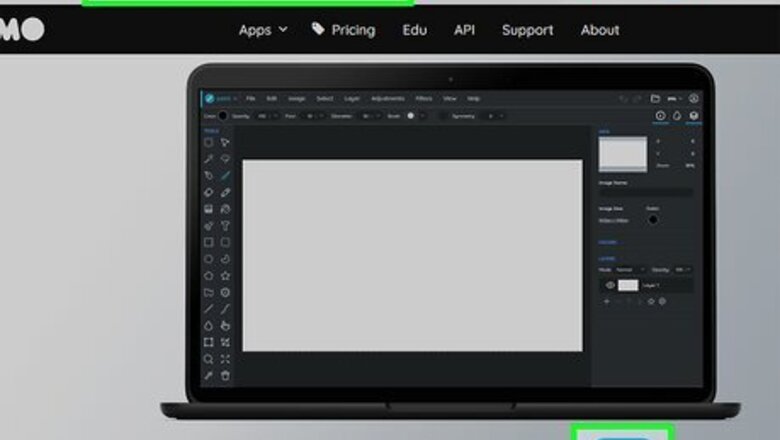

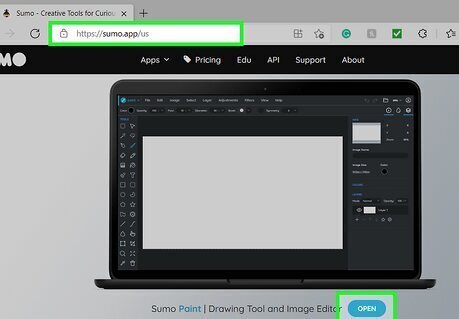
Go to https://sumo.app/us and click Open. You don't have to subscribe to use the drawing tools. You can use most of the drawing tools for free, but many of the photo-editing features cost a subscription fee. You can use the Sumopaint site from your computer, laptop, tablet, or phone.
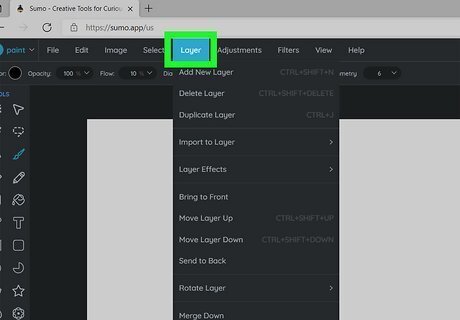
Investigate the layering capabilities of Sumopaint. The layers support the following features: Opacity, Blend mode, Hide, Duplicate, Rotate, Merge Visible, Merge Down, Flatten, Delete, Bring to Front, Send to Back, Move Up, and Move Down. To insert an image in a new layer, go to Layer > Import to Layer > From My Computer/From URL.
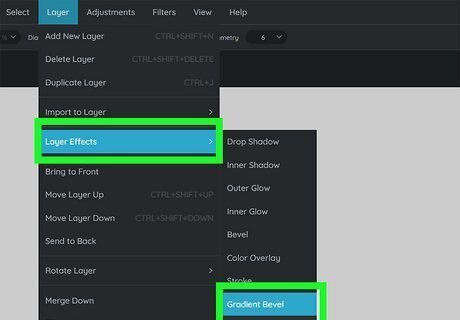
Use effects with the layers. Go to Layer > Layer Effects to apply these effects. With each layer, you can use Drop Shadow, Inner Shadow, Outer Glow, Inner Glow, Bevel, Cover Overlay, and Stroke. To add a new layer, press the + icon in the Layers menu (it's on the right side of your screen). If you add an element to a new layer, you'll be able to add layer effects to alter how that element appears.
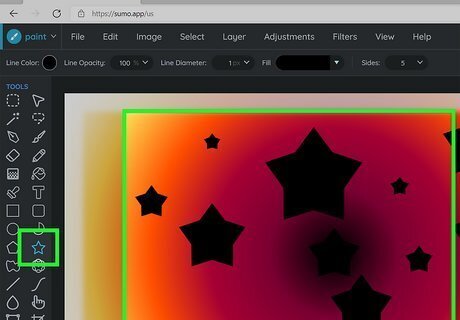
Use shapes. With the free version of Sumopaint, you have access to all of the drawing tools, like the shape tools. You'll find the shapes in the toolbar on the left side of your screen. There are multiple shapes available including, Rounded Rectangle Tool, Rectangle Tool, Circle Tool, Pie Tool, Star Tool, Polygon Tool, Custom Shape Tool, and Symmetry Tool. When you click on a shape tool, click and drag to make the shape on your canvas, then release your mouse click to finalize your shape. You can edit the shape in the toolbar on the right side of the page.
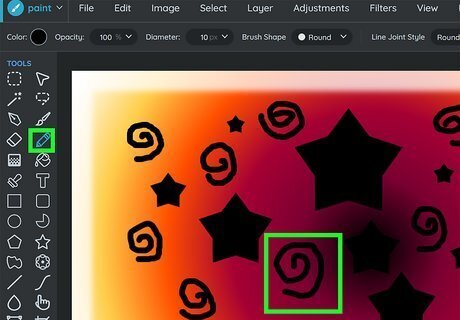
Draw with the brush, ink, and pencil tools. On the toolbar to the left side of the screen, you can click to select the paintbrush icon, the fountain pen tip icon, and the pencil icon. Each will display their name when you mouse over the icons. To draw, click and drag your mouse and you should see the line created by your brush, ink, or pencil tool. To stop drawing, release the mouse click. If you make a mistake, press Ctrl + Z to undo what you've just done or click the arrow icon that's near the top right corner of the page.
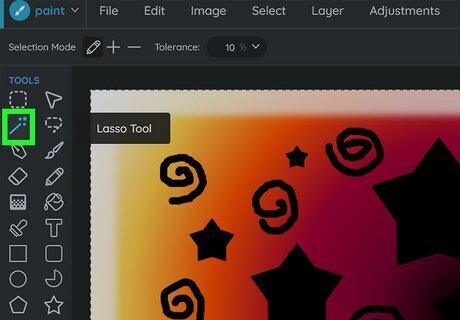
Use the selection tools to select parts of your design that you want to make changes to. These look like a dashed rectangle, a dashed circle or lasso, and a magic wand. The dashed rectangle will allow you to select items in a rectangular shape, which you can change to a circular shape using the menu above the editing space. The lasso tool will allow you to free-select items that aren't in a rectangular or circular shape. The magic wand tool will select items that have similar pixels, like those with similar colors, which is handy for selecting an entire background. If you want to select more than one non-contiguous piece, then click on the + tool while you're using the selection tool. You can press Ctrl + X to cut and copy the selected pixels, then press Ctrl + V to paste it. To deselect what you have selected, press Ctrl + D or go to Select > Deselect.
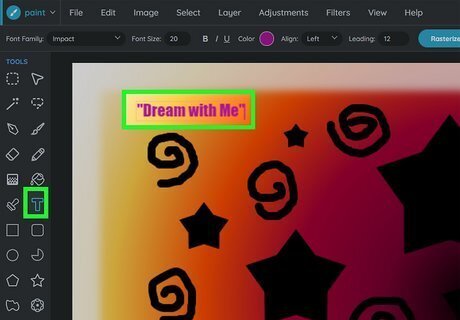
Experiment with the text tool. This tool allows you to use True Type Fonts (*.ttf), which are on your computer. You can also change the scale, rotation, and skew of the text. Make sure you add text to new layers so you can add effects to the text easily. To add a new layer for your text, press the + icon in the Layers panel.
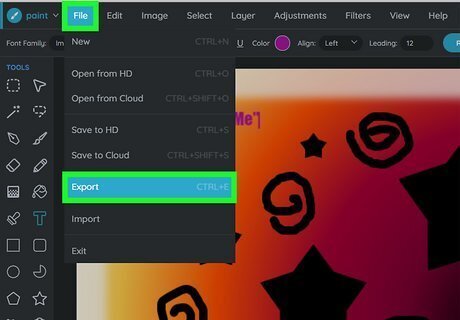
Save your drawing. Once you've finished drawing, go to File > Export or press Ctrl + E to save your drawing as a PNG, JPEG, or GIF. Alternatively, press Ctrl + S to save it as a Sumo project (.sumo) on your computer.








Comments
0 comment