





Under Windows XP/2000+, batch files (*.bat) run in a special window (aka Command Prompt) created by c:\window\system32\cmd.exe (this could be called command.com in some instances). Commands can be typed in individually, or listed sequentially in a batch file, requiring use of batch file language. This How-To will tell you how to create and run a Microsoft batch file, giving a simple backup as an example.
Open your text editor. Expect to use keys A-Z/0-9/, the symbols (!$| etc), and Enter. Most commands do not check entry for upper/lowercase, so for the moment don't worry about CAPS (or cApS). Each command (and its parameters) goes on one line. Open a command line window (cmd.exe) to test the commands you want to run. Arrange your windows so you can see them both.
Start writing the file. To start writing the file, most people start with @echo off as it stops each command being printed as it is processed. It reduces clutter on the user's screen. : @echo off
Hit ↵ Enter. Remember to press Enter after each command.
Welcome the user to the program. Type: : echo Welcome to the Backup Script!
Hit ↵ Enter again.
Leave a blank line for neat spacing then continue typing yet another line. : echo.
Press ↵ Enter one more time.
Program what options you want the person who runs your program to see. This code below gives the user a choice. Either they press F, or N, or they press Q or CTRL-Z which cancels the whole script. : choice /C:FNQ /N Select [F]ull Backup or [N]ew files only. Press [Q] or [CTRL-Z] to exit.
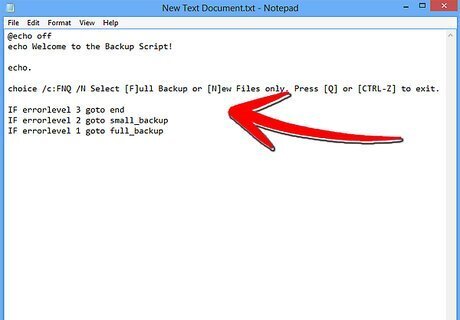
Create commands for each choice. If the user presses Q the program returns a "3", and goes to section "end". If they press N the program returns a "2", and goes to section "small_backup". If they press F, the program returns a "1", and goes to "full_backup". "Errorlevel" is not an error message as such, just the only way to set output from the CHOICE command. : IF errorlevel 3 goto end : IF errorlevel 2 goto small_backup : IF errorlevel 1 goto full_backup
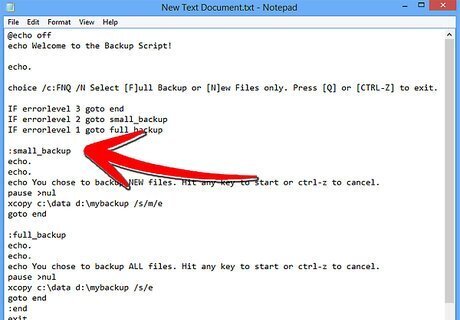
Create those sections referred to above. Type:
: :small_backup
: echo.
: echo.
: echo You chose to backup NEW files. Hit any key to start or ctrl-z to cancel.
pause >nul
xcopy c:\mydirectory d:\mybackup /s/m/e
goto end
: :full_backup
: echo.
: echo.
: echo You chose to backup ALL files. Hit any key to start or ctrl-z to cancel.
pause >nul
xcopy c:\mydirectory d:\mybackup /s/e
goto end
: :end
: exit
Create the directories referred to above, and copy a few small test files into the source directory ready for testing. Later you can change those directory names to suit your real
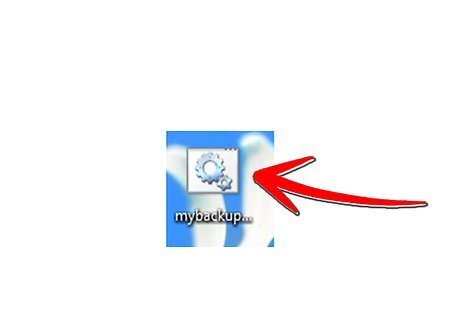
Save the file in Notepad as "mybackup.bat".
Double-click the file to run it.









Comments
0 comment