



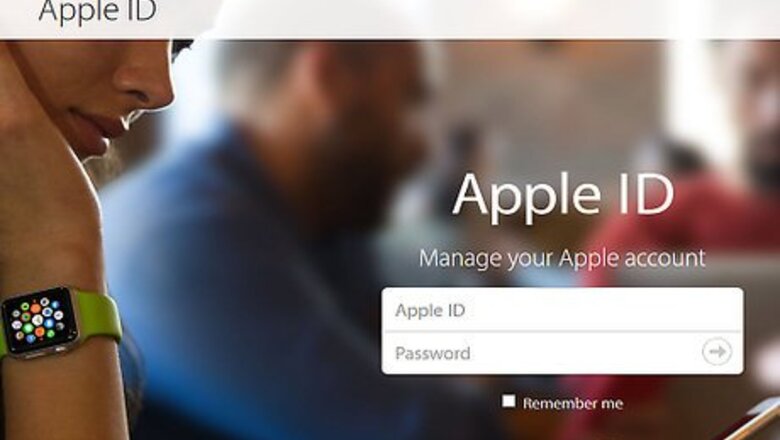

Accessing Your Apple ID Account
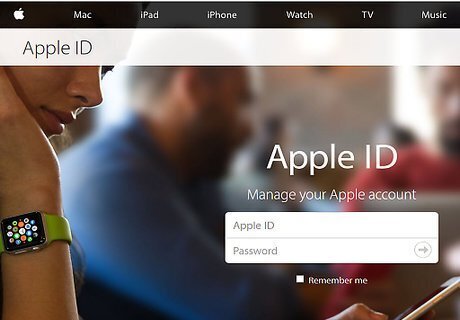
Open the Apple ID website.
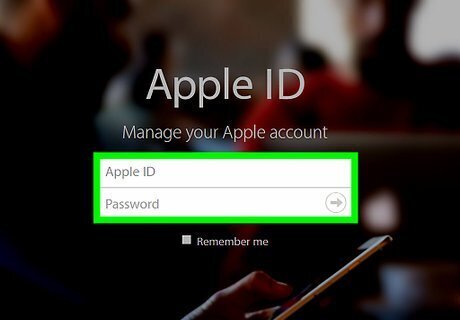
Type in your Apple ID email address and password. You'll do this in the provided fields in the middle of your screen.
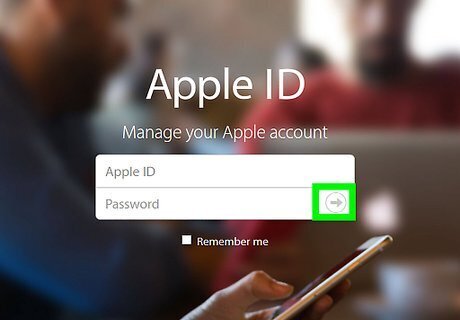
Tap →. This will both log you into your Apple ID account and prompt Apple to send a two-factor authentication alert to your iPhone.
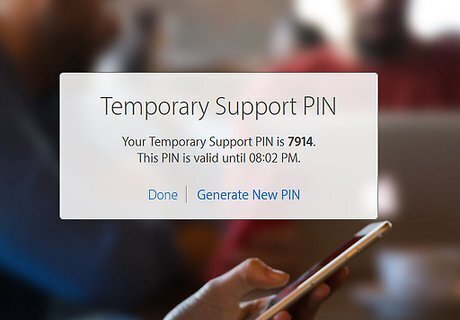
Tap Allow. You should see a code pop up on your screen after doing so.
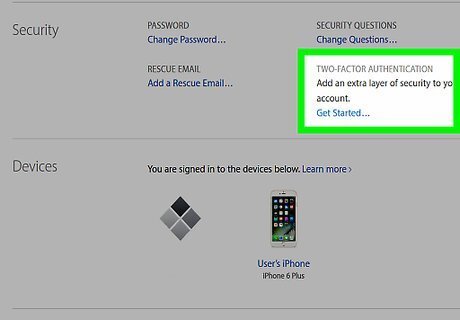
Type the code on your screen into the provided field on the Apple ID website. If the codes match, you'll be redirected to your account, from which you can disable two-factor authentication from within the Security section.
Disabling Two-Factor Authentication
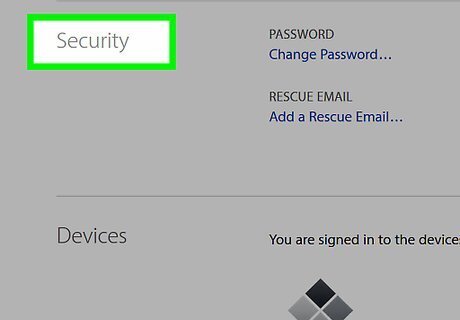
Tap Security.
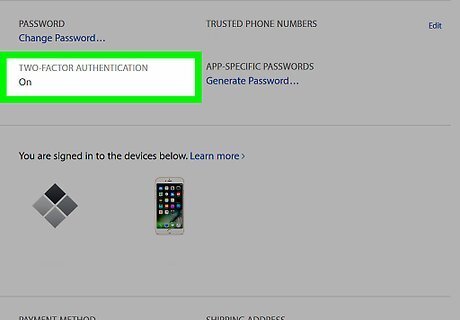
Scroll down to the "Two-Factor Authentication" section.
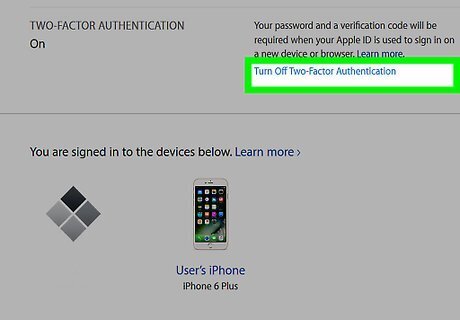
Tap Turn Off Two-Factor Authentication.
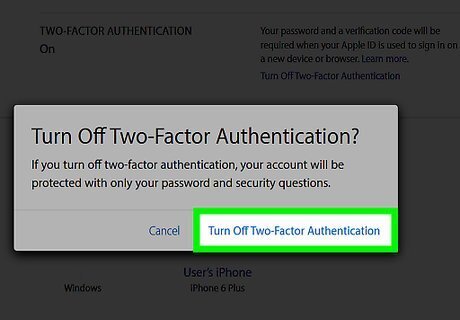
Tap Continue.
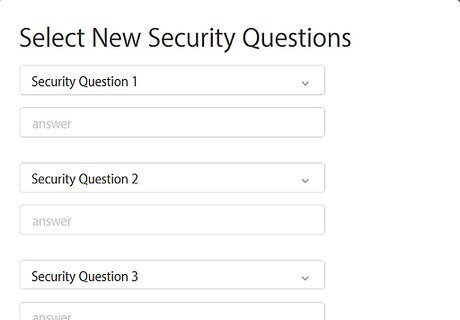
Select three new security questions and answers. These should be easily-memorable to you.
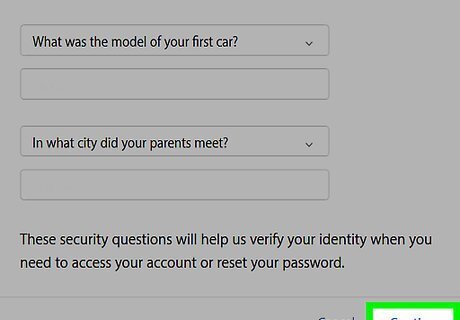
Tap Next. It's in the top right corner of your browser's page.
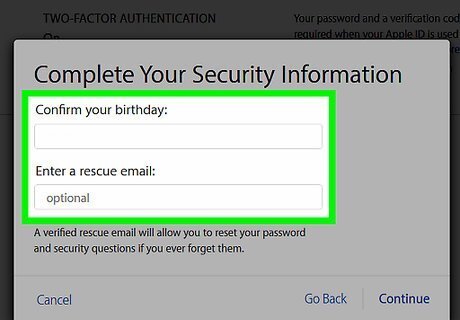
Verify your personal information. This includes your recovery email address and your date of birth. Apple will send a verification email to your address listed here after you click off of this page, so make sure the listed email address is active. Your recovery email address is different than your Apple ID email address. If you change your email address here, Apple will send you a verification email with a code you'll need to enter in the website's provided field before you can disable two-factor authentication.

Tap Next again.
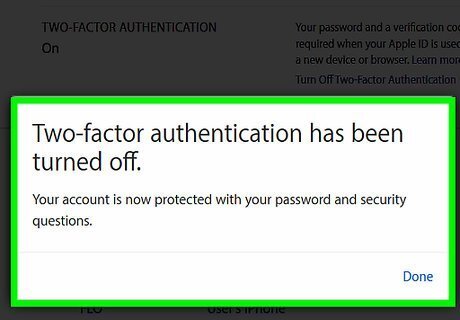
Tap Done. This is in the top right corner of your screen--tapping it will turn off your Apple ID's two-factor authentication. If you get locked out of your account, you'll need to rely on your security questions and other proof of identity to get access back.












Comments
0 comment